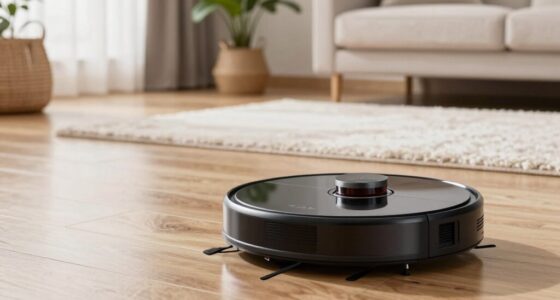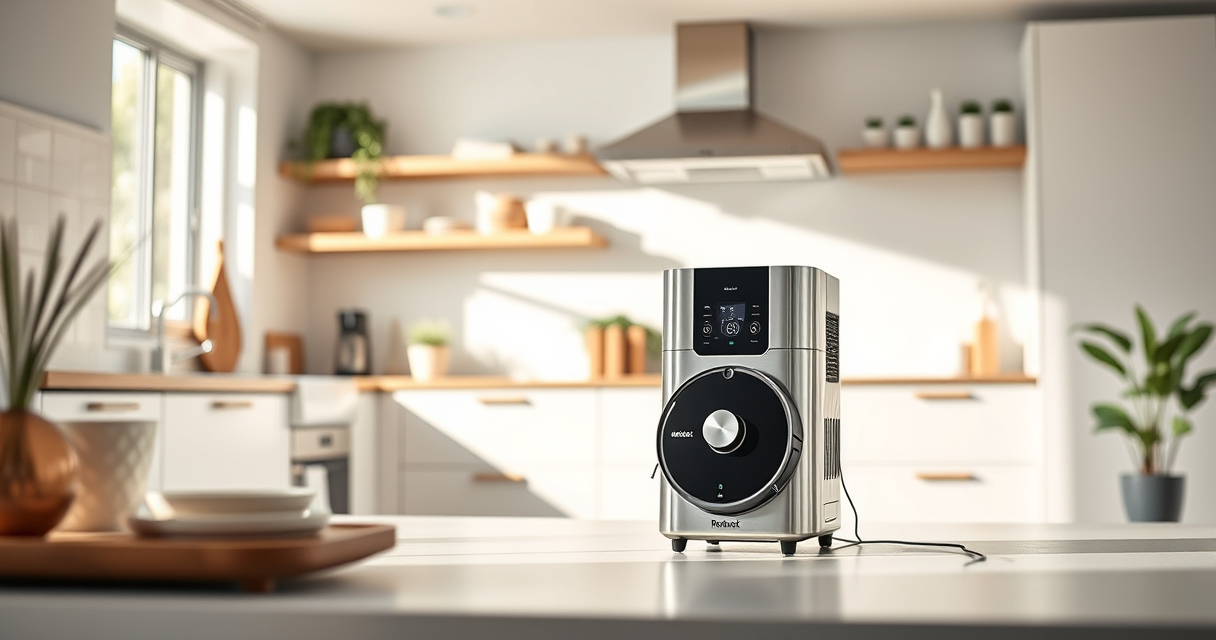
If your Roborock Q7 M5+ robot vacuum isn’t connecting to WiFi, it can disrupt your cleaning routine and cause frustration. Fortunately, most connectivity issues are fixable with some straightforward troubleshooting steps. This guide will walk you through practical, safe solutions to restore your robot’s WiFi connection quickly.

Get cleaning gear delivered free with Prime
- Fast, free delivery on millions of items
- Prime Video, Amazon Music and more included
- Member-only deals all year
Before you start, ensure your smartphone and robot are within range of your WiFi network, and that your network is functioning properly. Having your WiFi password handy will also make the process smoother.
Key Takeaways
| Check WiFi Compatibility | Ensure your network supports 2.4GHz band, which Roborock devices typically use. |
| Restart Devices | Power cycle your robot and router to refresh network connections. |
| Update Firmware | Make sure your Roborock app and device firmware are up to date. |
| Reset Network Settings | Reset WiFi settings on your robot to re-establish connection. |
| Reinstall App | Uninstall and reinstall the Roborock app for a clean setup. |
1. Verify Your WiFi Network
- Ensure your WiFi router is working correctly and that your smartphone can connect to the internet.
- Check if your network is 2.4GHz, as many Roborock models, including the Q7 M5+, require this frequency.
- If using dual-band WiFi, connect your phone to the 2.4GHz network temporarily for setup.
2. Restart Your Devices
- Turn off your Roborock vacuum by pressing the power button or using the app.
- Unplug your WiFi router, wait about 30 seconds, then plug it back in.
- Turn your vacuum back on and try reconnecting through the app.
3. Reset WiFi Settings on Your Roborock
- Open the Roborock app and select your device.
- Navigate to device settings and find the WiFi or network options.
- Choose the option to forget or reset WiFi settings.
- Follow prompts to reconnect your device to the network.
4. Update Firmware and App
- Check for firmware updates within the Roborock app and update if available.
- Ensure the app is updated to the latest version from your app store.
- Reattempt the WiFi connection after updates are installed.
5. Reinstall the Roborock App
- Uninstall the Roborock app from your smartphone.
- Download and install the latest version from your app store.
- Sign in and attempt to set up your device again.
The Products in This Guide

roborock Q7 M5+ Robot Vacuum and Mop
- ✔ Max Runtime: Up to 9 weeks
- ✔ Dust Capacity: 2.7L
- ✔ Navigation Type: LiDAR

4 Pack Washable Filter
- ✔ Filter Life: Multiple washes
- ✔ Compatibility: Wide model range
- ✔ Material: HEPA
roborock Q7 M5+ Robot Vacuum and Mop
The Roborock Q7 M5+ Robot Vacuum and Mop features PreciseLiDAR navigation, strong 10,000Pa suction, and a self-emptying dust bag that lasts up to 9 weeks. Its app control makes it easy to manage cleaning routines remotely.
Pros:
- Powerful 10,000Pa suction
- Self-emptying dust bag
- PreciseSense LiDAR navigation
- Dual anti-tangle system
Cons:
- Requires stable WiFi connection
- Setup can be complex for some users
- App interface may be overwhelming initially
Best for: Pet owners and busy households seeking reliable, self-sufficient cleaning
Not ideal for: Users with unstable WiFi or who prefer manual cleaning
Bottom line: A powerful, smart vacuum ideal for pet owners and larger homes.
4 Pack Washable Filter
This 4-pack of washable filters is compatible with several Roborock models, including the Q7 and Q5 Max+. They help maintain optimal suction and air quality while reducing ongoing costs.
Pros:
- Effective HEPA filtration
- Reusable and washable
- Easy to install
- Compatible with multiple models
Cons:
- Not OEM, so quality may vary
- Requires regular cleaning for best performance
- Limited to specific models
Best for: Maintaining peak vacuum performance and air quality
Not ideal for: Users looking for OEM-certified filters
Bottom line: A cost-effective way to keep your vacuum running efficiently.
Frequently Asked Questions
Why won’t my Roborock connect to WiFi?
Common reasons include network compatibility issues, outdated firmware, or interference. Follow the troubleshooting steps to resolve.
Should I reset my Roborock’s WiFi settings?
Yes, resetting WiFi settings can resolve connection issues. Just ensure you follow the app prompts carefully.
Can I use a 5GHz WiFi network?
Most Roborock models, including the Q7 M5+, require a 2.4GHz network. Using 5GHz can prevent connection.
How often should I update my Roborock firmware?
It’s recommended to check for updates periodically via the app to ensure optimal performance and connectivity.
Getting Your Roborock Back Online
WiFi connectivity issues can be frustrating, but with these simple troubleshooting steps, you can often resolve them quickly and get your Roborock vacuum working smoothly again. Remember to verify your network settings, restart devices, and keep your firmware updated for the best results. If problems persist, consider reinstalling the app or contacting support for further assistance.
Affiliate disclosure: As an Amazon Associate we earn from qualifying purchases. Prices and availability are accurate as of the time of publishing.
Columbus Day / Indigenous Peoples' Day Picks
long weekend sales
As an affiliate, we earn on qualifying purchases.