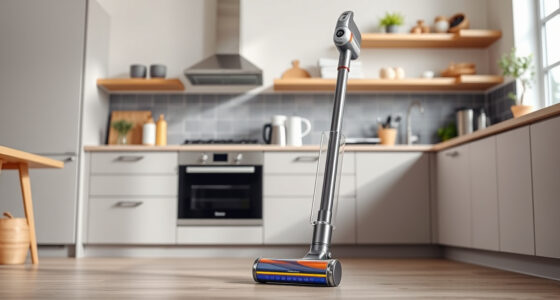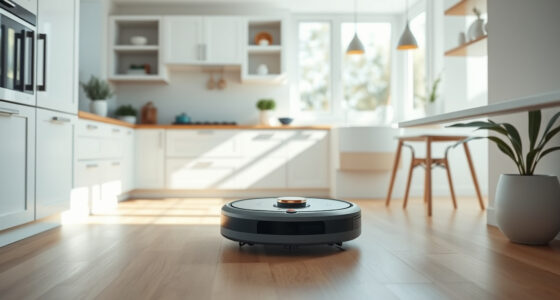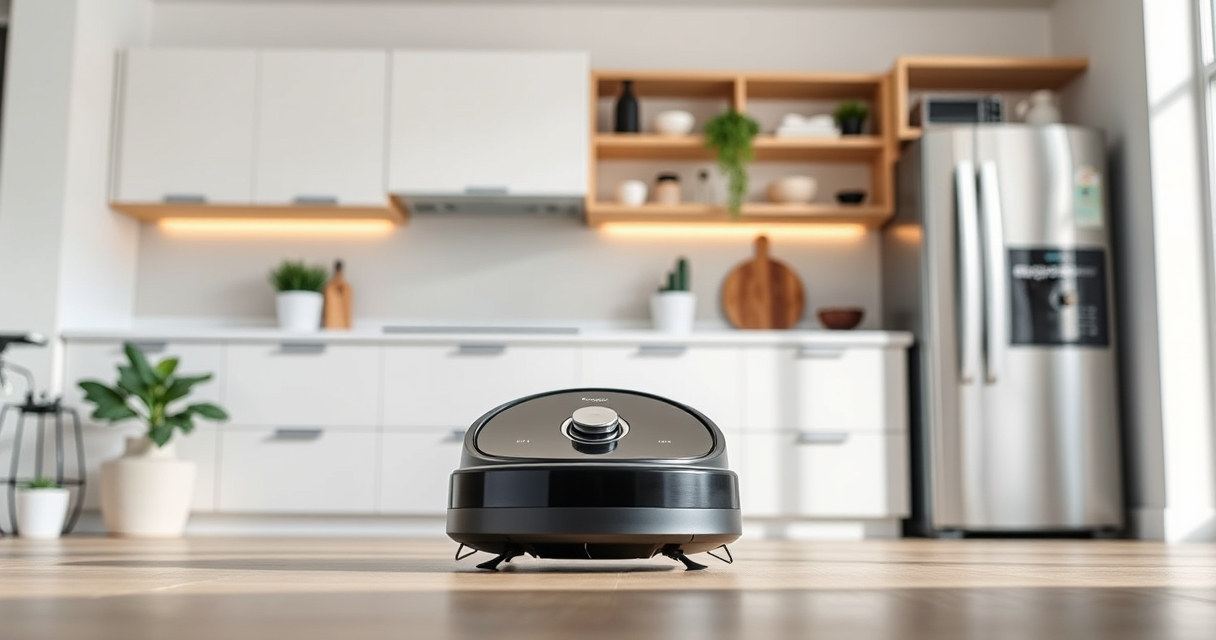
If your Roborock Q7 M5+ robot vacuum is having trouble connecting to WiFi, it can hinder your ability to control and schedule cleanings remotely. This guide provides practical, step-by-step solutions to resolve WiFi connection issues safely and effectively, ensuring your device stays connected and performs optimally.

Get cleaning gear delivered free with Prime
- Fast, free delivery on millions of items
- Prime Video, Amazon Music and more included
- Member-only deals all year
Before starting, ensure your WiFi network is functioning correctly, and your smartphone has a stable internet connection. Patience and methodical troubleshooting are key to resolving connectivity problems with your Roborock device.
Key Takeaways
| Check Network Compatibility | Ensure your WiFi is 2.4GHz, not 5GHz, as Roborock devices typically require 2.4GHz signals. |
| Restart Devices | Power cycle your Roborock vacuum and your WiFi router to refresh connections. |
| Reset WiFi Settings | Reconfigure the WiFi on your Roborock via the app to re-establish the connection. |
| Update Firmware & App | Make sure the Roborock app and device firmware are up to date for best compatibility. |
| Check Signal Strength | Move the robot closer to your WiFi router during setup to improve signal quality. |
Verify WiFi Network Compatibility
- Confirm your WiFi network is 2.4GHz, as Roborock devices like the Q7 M5+ typically do not support 5GHz networks.
- Check your router settings to ensure the network is active and visible.
Restart Your Devices
- Unplug your WiFi router, wait 30 seconds, then plug it back in.
- Power off your Roborock Q7 M5+ vacuum by removing its power source or turning it off, then turn it back on.
Reconfigure WiFi Connection
- Open the Roborock app and select your device.
- Navigate to device settings and choose ‘WiFi Settings.’
- Select your network and input the password again.
- Follow on-screen prompts to complete the connection.
Update Firmware and App
- Check for app updates in your app store, and update if available.
- In the Roborock app, go to device settings and select ‘Firmware Update’ to ensure your device is running the latest software.
Improve Signal Strength
Keep the vacuum closer to the router during setup. Avoid obstructions like thick walls or large metal objects that can weaken WiFi signals. Consider repositioning your router if persistent issues occur.
The Products in This Guide

roborock Q7 M5+ Robot Vacuum and Mop
- ✔ Battery Life: Up to 3 hours
- ✔ Dust Capacity: 2.7L
- ✔ Weight: 7.6 kg

4 Pack Washable Filter
- ✔ Filter Life: Several months
- ✔ Washable: Yes
- ✔ Compatibility: Multiple models
roborock Q7 M5+ Robot Vacuum and Mop
The Roborock Q7 M5+ combines powerful 10000Pa suction with advanced PreciSense LiDAR navigation, making it a top choice for thorough cleaning. Its app control makes managing WiFi connectivity straightforward once properly set up.
Pros:
- High suction power
- Smart navigation system
- Long-lasting self-emptying feature
- App control for easy management
Cons:
- WiFi setup can be tricky
- Requires stable 2.4GHz network
- Initial connection may fail sometimes
Best for: Pet owners and busy households seeking a reliable, high-performance robotic vacuum.
Not ideal for: Users with incompatible WiFi networks or those unfamiliar with app setup.
Bottom line: Ensure your network compatibility and follow the steps carefully to restore WiFi connection.
4 Pack Washable Filter
This 4-pack of washable filters ensures your Roborock maintains optimal suction and air quality, complementing your device’s performance and prolonging its lifespan.
Pros:
- Reusable and washable
- Easy to install
- Maintains suction efficiency
- Compatible with multiple models
Cons:
- Requires regular cleaning
- Not OEM but high quality
- May need replacing every few months
Best for: Users seeking cost-effective, eco-friendly filter options.
Not ideal for: If you prefer OEM-certified parts or have specific allergies requiring OEM filters.
Bottom line: A practical upgrade to keep your vacuum running efficiently and your air clean.
Frequently Asked Questions
Why won’t my Roborock connect to WiFi after setup?
Ensure your network is 2.4GHz, restart your router and vacuum, and reconfigure the WiFi settings via the app. Firmware updates can also resolve connectivity issues.
Can I connect my Roborock to a 5GHz network?
Roborock devices like the Q7 M5+ typically only support 2.4GHz WiFi networks. Check your router settings to ensure compatibility.
What should I do if the connection keeps dropping?
Place the robot closer to the router during setup, avoid interference from other electronic devices, and ensure your WiFi signal is strong throughout your home.
Is firmware update necessary for WiFi issues?
Yes, keeping the firmware and app updated can resolve bugs and improve connectivity stability. Check for updates regularly in the app.
Keep Your Roborock Connected and Cleaning Efficiently
Resolving WiFi connection issues with your Roborock Q7 M5+ involves verifying network compatibility, restarting devices, and reconfiguring settings carefully. With patience and systematic troubleshooting, you can restore your vacuum’s connectivity and enjoy seamless smart cleaning. Remember, maintaining your WiFi network and keeping firmware updated are key to long-term stability.
Affiliate disclosure: As an Amazon Associate we earn from qualifying purchases. Prices and availability are accurate as of the time of publishing.
Halloween Picks
halloween
As an affiliate, we earn on qualifying purchases.